Learning to use JewelSuite Geomechanics
All the features and functionality are described in full in the User Manual in PDF format. Alternatively, you can view the Help from inside the application.
To view the manual, go to the Home > Help sub-strip and click the Manual as PDF icon.
Dynamic Help (Ctrl + F1) is also provided, that follows what you are doing and continually updates to display information on whatever you are working with or part of the application you are in.
When you first install JewelSuite Geomechanics, the Dynamic Help is initially hidden. To show it, click on the Help icon on the right side of the application. Click anywhere else on the screen, the Help will disappear again.
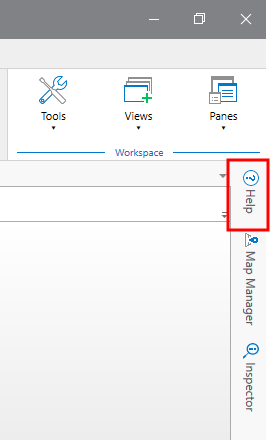
Opening the dynamic help. click to enlarge
To pin it, so it stays visible, click the small pin icon.
- You can dock the help pane by clicking the horizontal pin
 icon.
icon. - You can auto hide the help pane by clicking the vertical pin
 icon. The panes will then collapse into the narrow border at the side of the screen again. Click on the icon or name of the pane in this border to show the pane again. You can switch between auto hidden panes by clicking on them.
 - You can close the help pane by clicking the close
 icon.
icon.
The dynamic Help follows what you are doing as you work. It also describes items you click in the JewelExplorer, things you select in your 3D View, or views that you select.
You can re-size the Help to view more content. If you make it wide enough, you can also view a table of contents, index or glossary. Show or hide this by clicking the arrow icon. As with other panes, you can also detach the Help, to display it on another monitor, for example.
In the hELP sub-strip, you can also open the Help in a separate window. If you do so, this help window is not tied to what you are doing.